Shopify Integration (Beta)
The Entrupy Shopify app links your products to Entrupy authentications. Authenticate an item with the Entrupy mobile app, and the result shows up on the product page in your Shopify admin. From there, you can show a verified badge to customers, publish products automatically, and more.
What You Get
- Authentication status for every product, right inside your Shopify admin
- A QR code on each product page for starting a new Entrupy authentication
- Automatic result updates as Entrupy reviews your submission, including when new photos are needed
- Auto-publish from Draft to Active when a product is marked Authentic
- An Entrupy Verified badge on your public store, with a certificate QR code customers can scan
- Link or remove authentications on any product, so you can fix mistakes or move a result to a different listing
Setup
1. Install the App
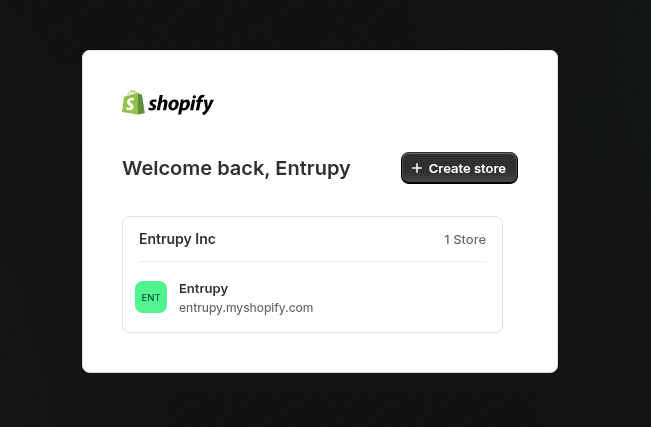
- Open the install link your Entrupy account manager shared with you, then select the Shopify store you want to connect
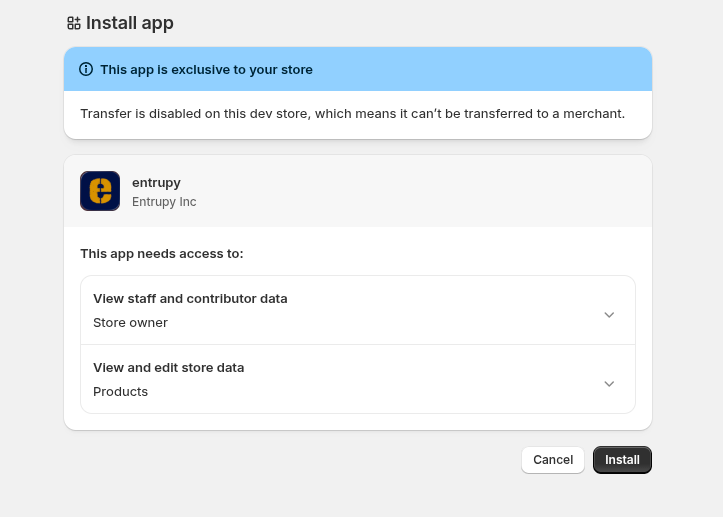
- Review the permissions Shopify requests, then click Install
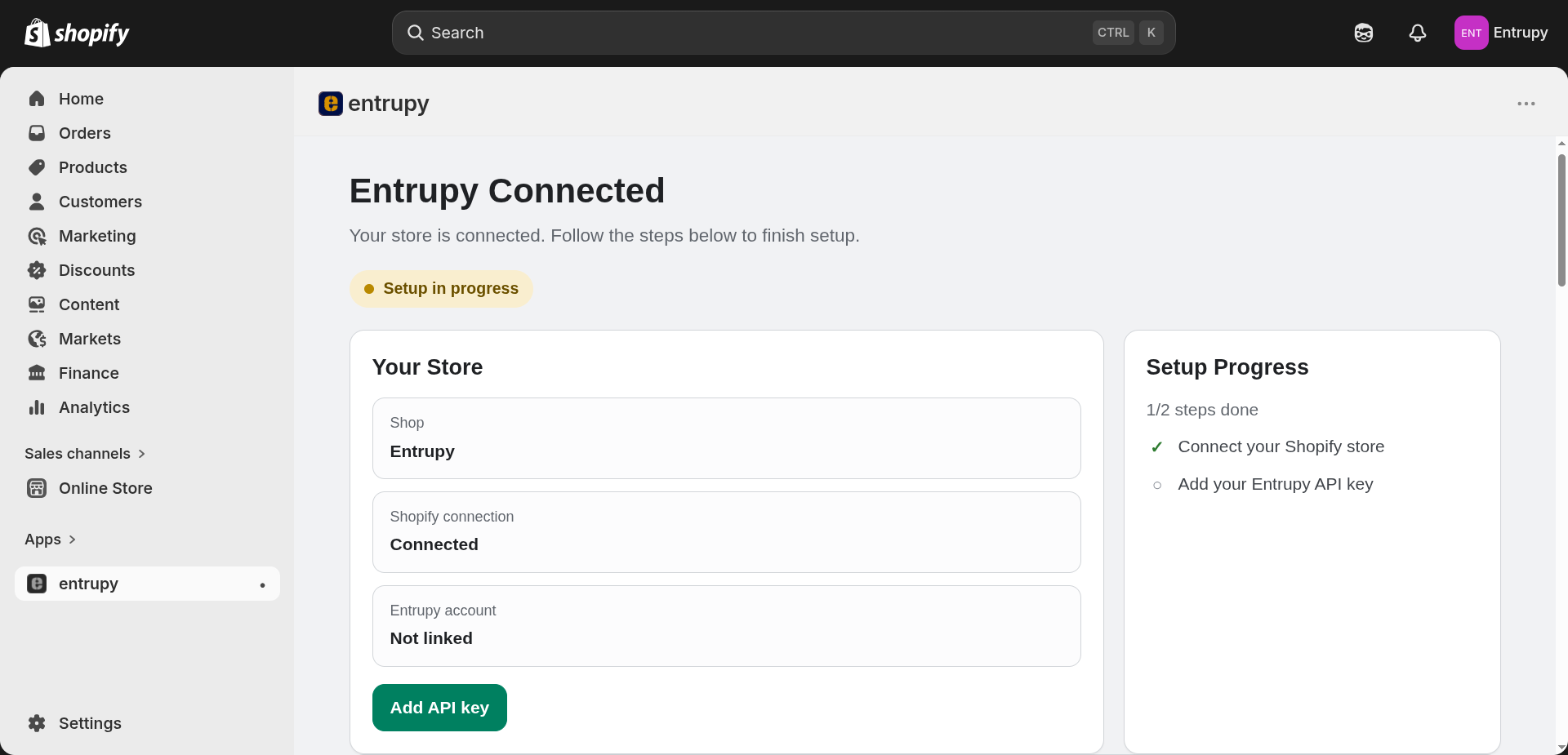
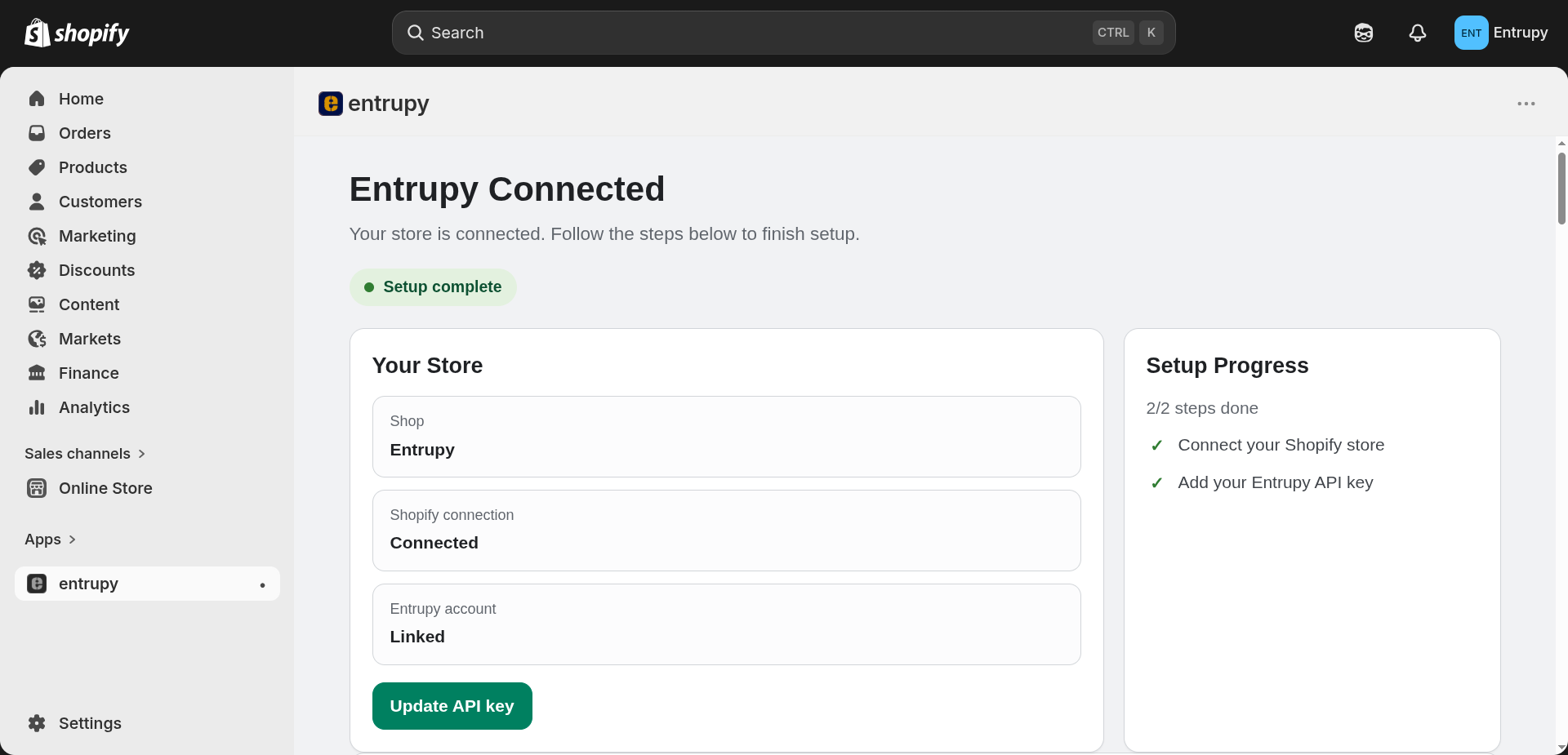
- You'll land on the Entrupy app dashboard inside Shopify.
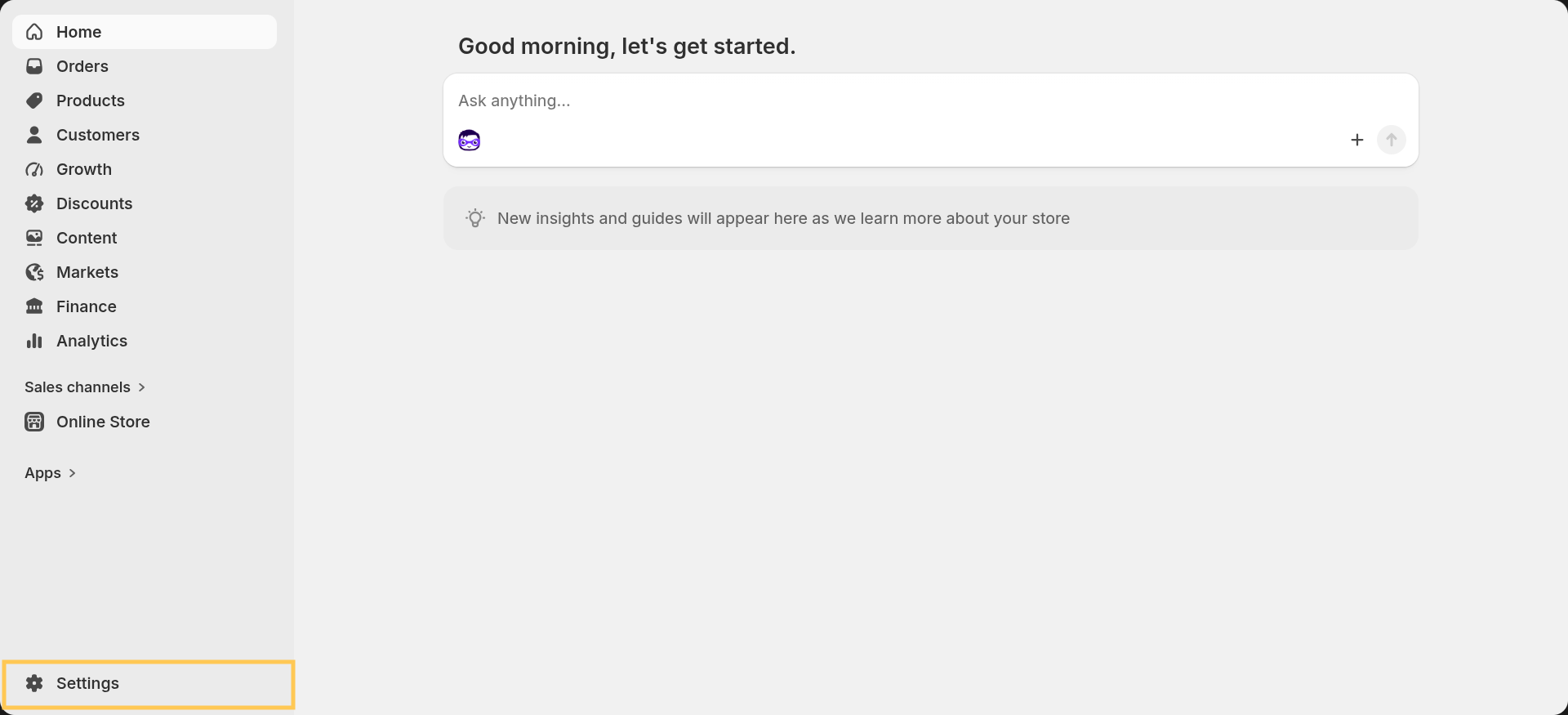
- If you weren't redirected, open the app from Home in the Shopify admin sidebar.
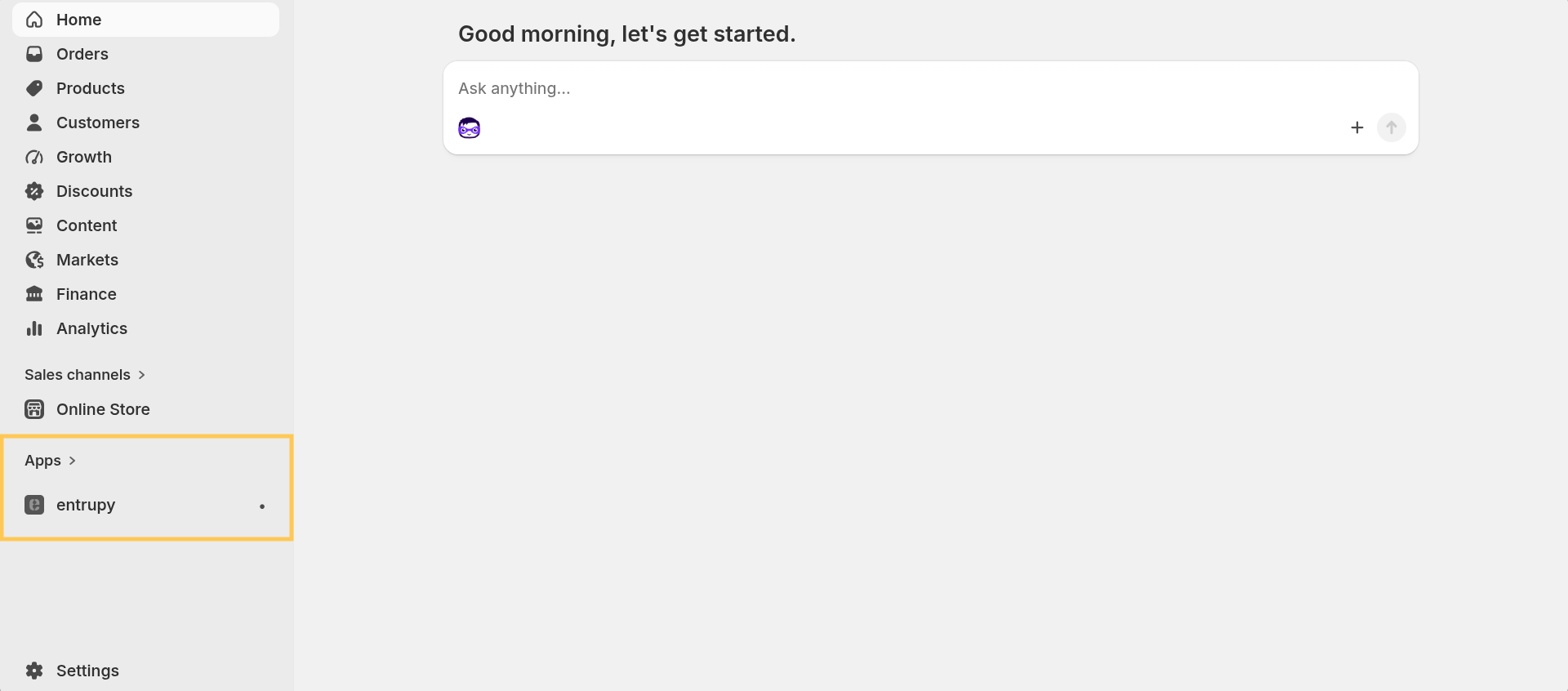
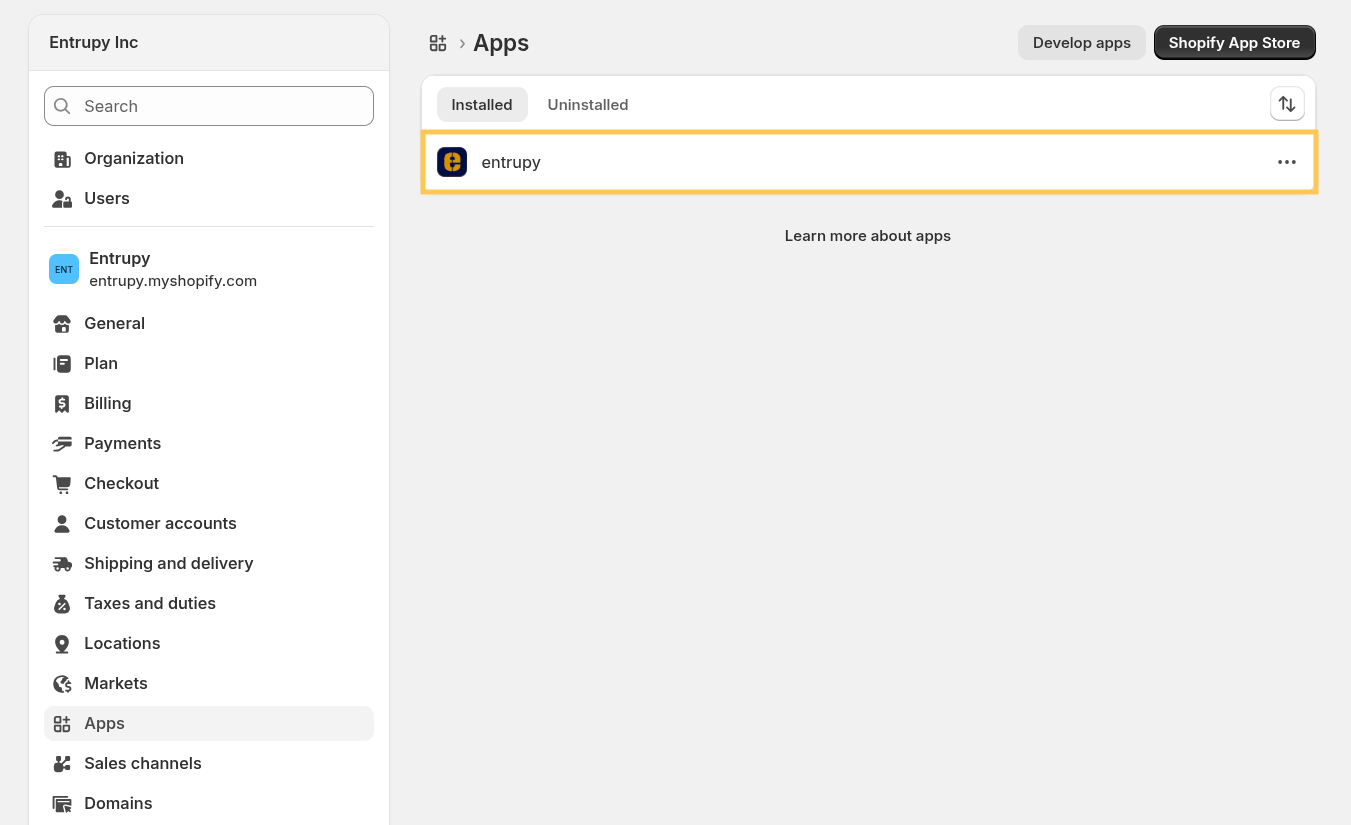
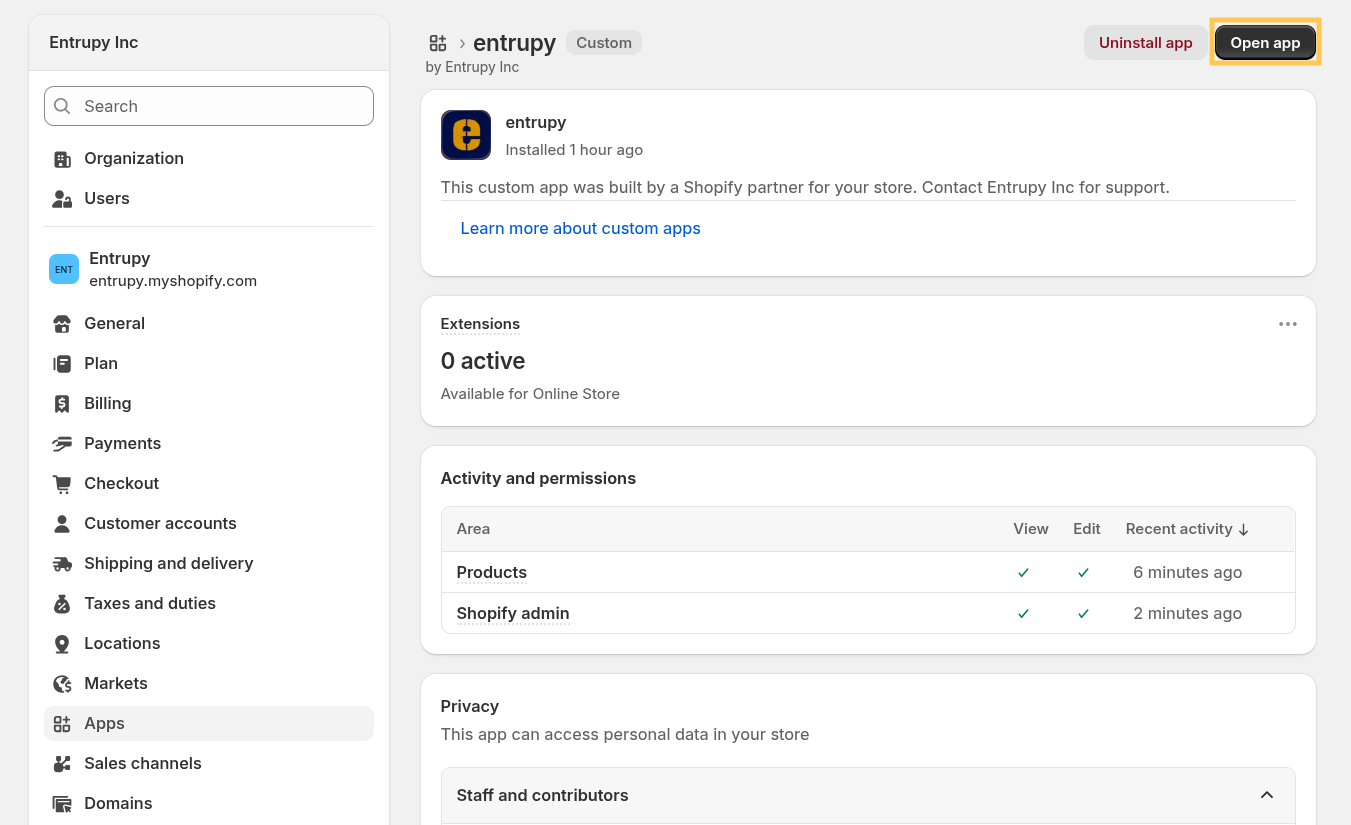
- If Entrupy isn't listed on Home, select Settings, go to Apps, select Entrupy, then click Open app.
2. Connect Your Entrupy Account
The app needs your Entrupy API key to link your store to your account. Your account manager will provide you this key.
- From the dashboard, click Add API key
- Paste your key and click Save API key
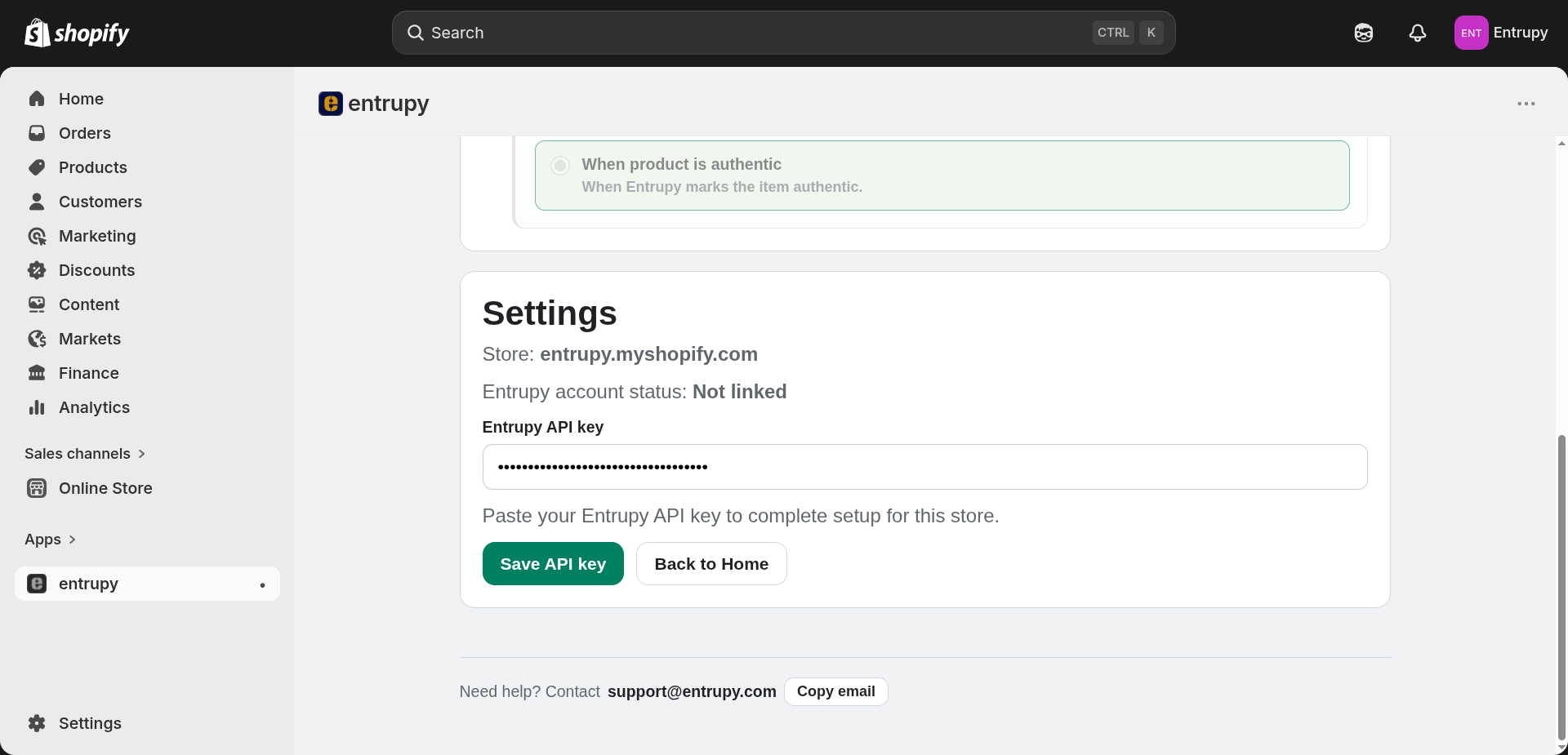
The app validates the key and connects your store. Once that's done, the dashboard shows Setup complete and Linked.
Authenticate
Every product in your Shopify admin has an Entrupy block on the product details page. That's where you start authentications, check results, link existing authentications, or remove a link if you need to start over.
You can configure publishing, certificate media, session photos, and storefront badge behavior after setup. Those settings do not change how you start an authentication.
Start a New Authentication
Step 1: Open the product
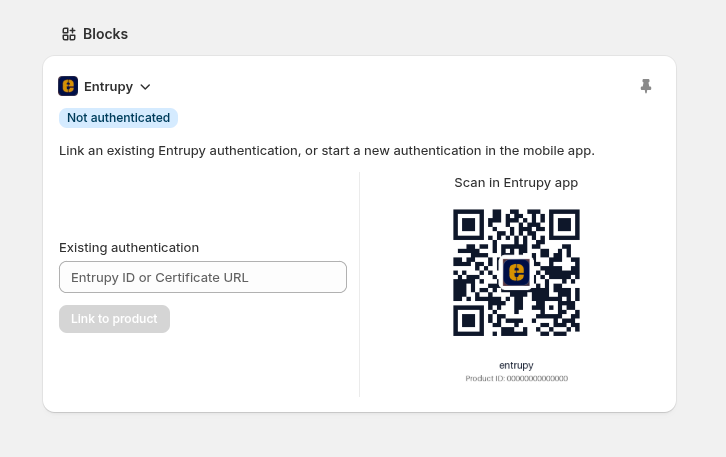
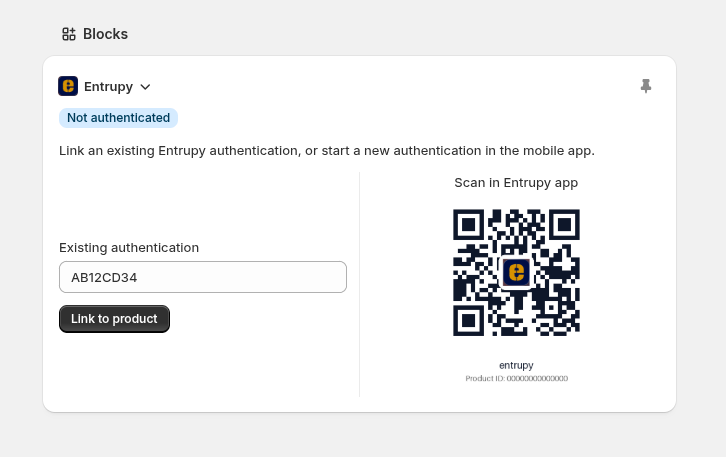
Open any product in Shopify admin. The Entrupy block on the product page shows Not authenticated and a unique QR code for that listing.
Step 2: Authenticate in the Entrupy app
- Open the Entrupy mobile app
- Start a new authentication session
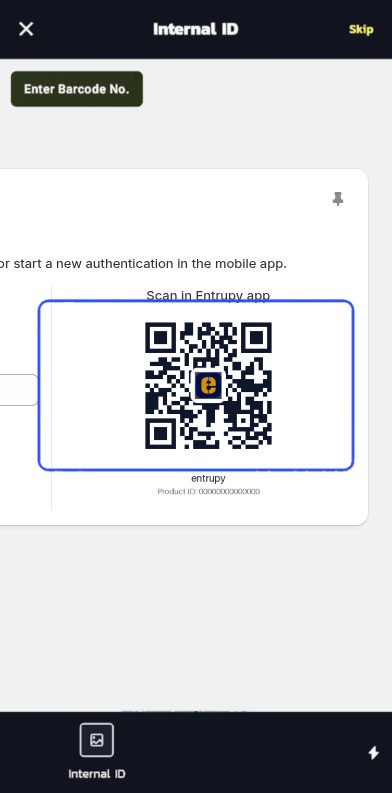
- Select your region. When the app asks for a barcode, scan the QR code from the Shopify product page. This links the session to that listing automatically.
- Follow the app's instructions to photograph the item
Step 3: See the result
After you submit, the Entrupy block updates on its own, you don't need to keep the page open. While Entrupy is working, you may see statuses like Submitted or Needs Review. These mean your submission was received and is still being reviewed.
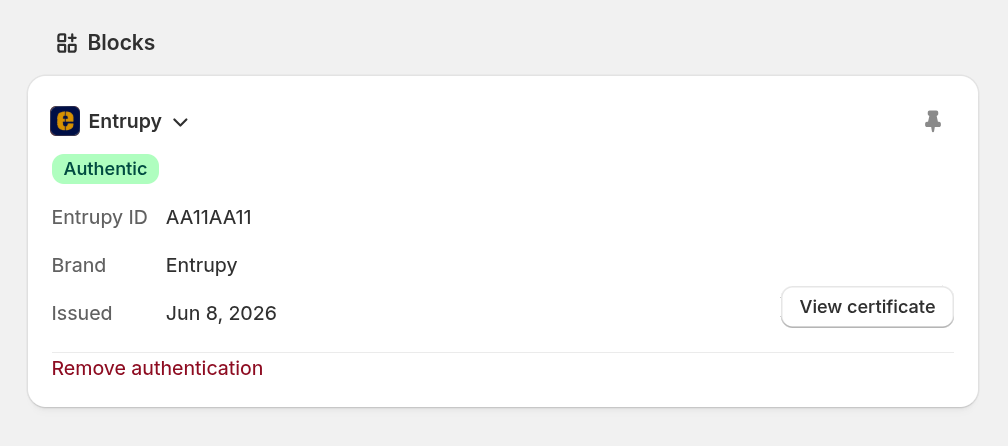
When the final result arrives, the block shows:
- The authentication status badge (e.g. Authentic, Unidentified)
- The Entrupy ID for the item
- For Authentic items: Brand, Issued date, and a View Certificate button
Any enabled follow-on actions, such as publishing a Draft product, adding certificate or session photos to media, or updating the product description — run in the background whether or not you have the page open.
Link an Existing Authentication
Already have an Entrupy authentication for the item? You can attach it to a Shopify product without going through the mobile app again.
In the Entrupy block, paste the Entrupy ID or the Certificate URL into the Existing authentication field and click Link to product.
The Entrupy ID is the code shown in the Entrupy app and on the certificate (e.g. AB12CD34). You can paste either the bare ID or the full certificate URL. Both work.
If the app cannot link the authentication, it shows an error. Common causes are a missing Entrupy API key, an invalid ID or URL, a session that cannot be found, or an authentication that is already linked to another Shopify product.
Remove an Authentication
Linked the wrong product, or want to start fresh on the same listing? You can remove the Entrupy link without deleting the product itself.
- Open the product in Shopify admin
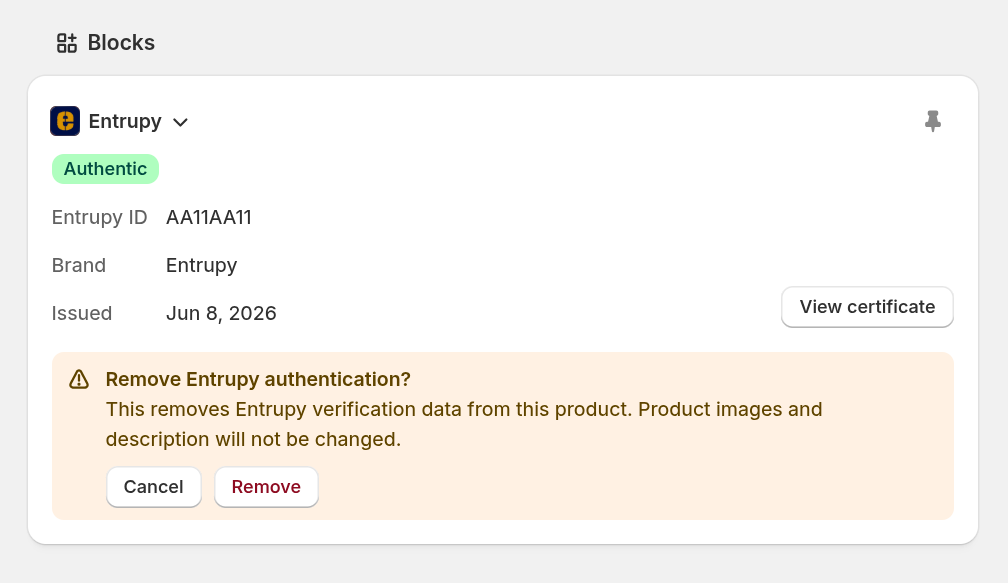
- In the Entrupy block, click Remove authentication
- Confirm when asked
This clears Entrupy verification data from that product in Shopify. It does not remove your existing product images or change the product description. You can link the same Entrupy authentication again afterward.
Understanding the Statuses
| Status | Meaning | Final? |
|---|---|---|
| Authentic | The item is verified authentic. A certificate is available. | Yes |
| Unidentified | The item couldn't be identified. | Yes |
| Submitted | Your photos were received. Entrupy hasn't finished reviewing yet. | No |
| Needs Review | The Entrupy team is still reviewing. Will update automatically. | No |
| Action Needed | Entrupy needs new or clearer photos. Complete the steps in the Entrupy mobile app. | No |
| Invalid | Something was wrong with the submission (e.g. blurry images). You can submit again. | No |
Final means the Shopify product keeps that result. Submitting the same product again will not replace an Authentic or Unidentified result.
Statuses that are not final, including Action Needed, Needs Review, Submitted, and Invalid, can change when Entrupy sends an updated result.
Configuration
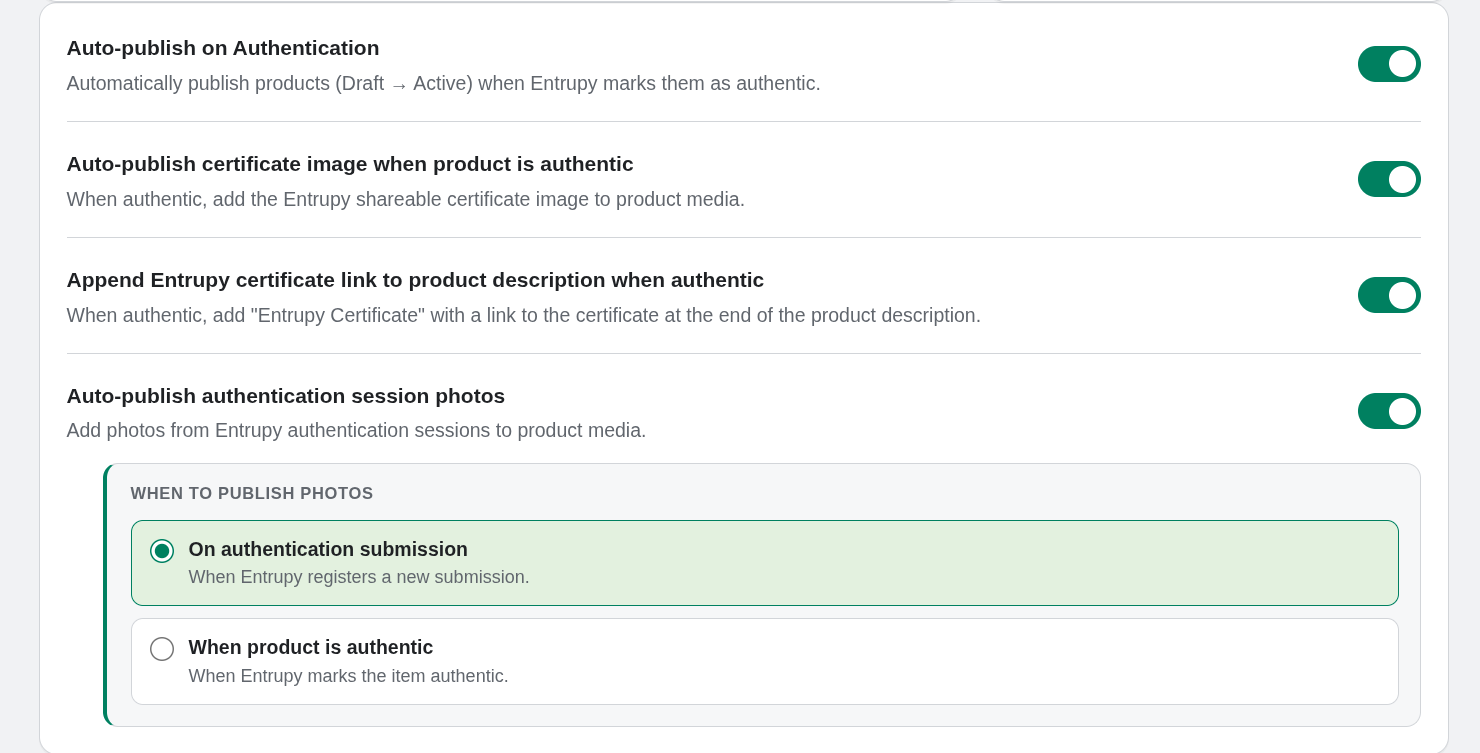
All toggles live on the Entrupy app dashboard and in Settings. Toggles save instantly. They apply to products when an authentication result arrives. They won't go back and change products that already received a result.
Auto-Publish: Draft → Active
If you stage products as Drafts before publishing, this toggle handles the final publish step. When a product gets an Authentic result, it switches to Active automatically.
Enable Auto-publish on Authentication in the app dashboard.
Certificate Image in Product Media
When Entrupy returns an Authentic result with a certificate, this toggle adds the shareable version of that certificate to the product's images.
Enable Auto-publish certificate image when product is authentic in the app dashboard.
The certificate image is added once. If it's already there, the app leaves it alone.
Authentication Session Photos in Product Media
During an authentication session, Entrupy may capture close-up photographs of the item. Turn this on to add those photos to the product's media gallery alongside your existing images.
Enable Auto-publish authentication session photos in the app dashboard. Your Entrupy API key must be connected for this to work.
When to publish photos
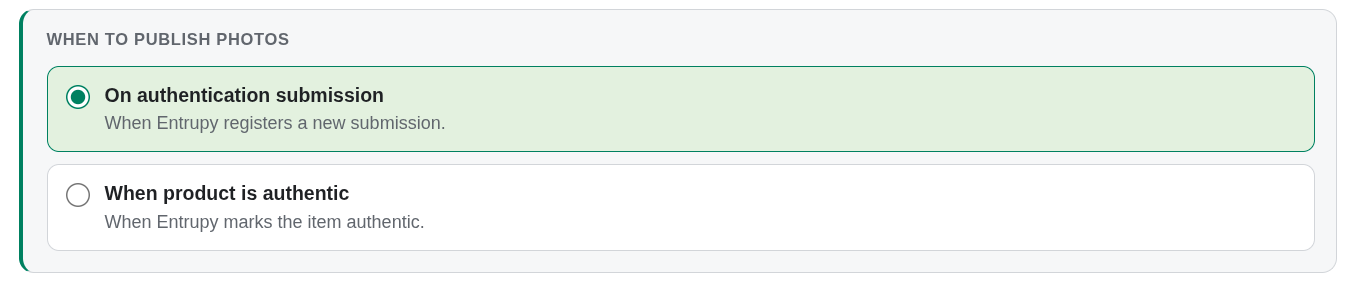
After you turn session photos on, choose when they should be added:
- On authentication submission — photos are added as soon as Entrupy registers your submission (while review may still be in progress)
- When product is authentic — photos are added only after Entrupy marks the item Authentic (default)
Certificate Link in Product Description
For stores that need the certificate URL to appear in feeds, exports, or custom themes, this option appends it to the product description.
Enable Append Entrupy certificate link to product description when authentic in the app dashboard.
When an Authentic result arrives, a short line reading Entrupy Certificate: followed by the URL is added to the end of the product description. If the line is already there, nothing changes.
Show the Entrupy Verified Badge to Customers
Products marked Authentic can display an Entrupy Verified badge on their public product pages. The badge shows the Entrupy seal, the Entrupy ID, a View Certificate button, and a QR code customers can scan to open the certificate on their phone.
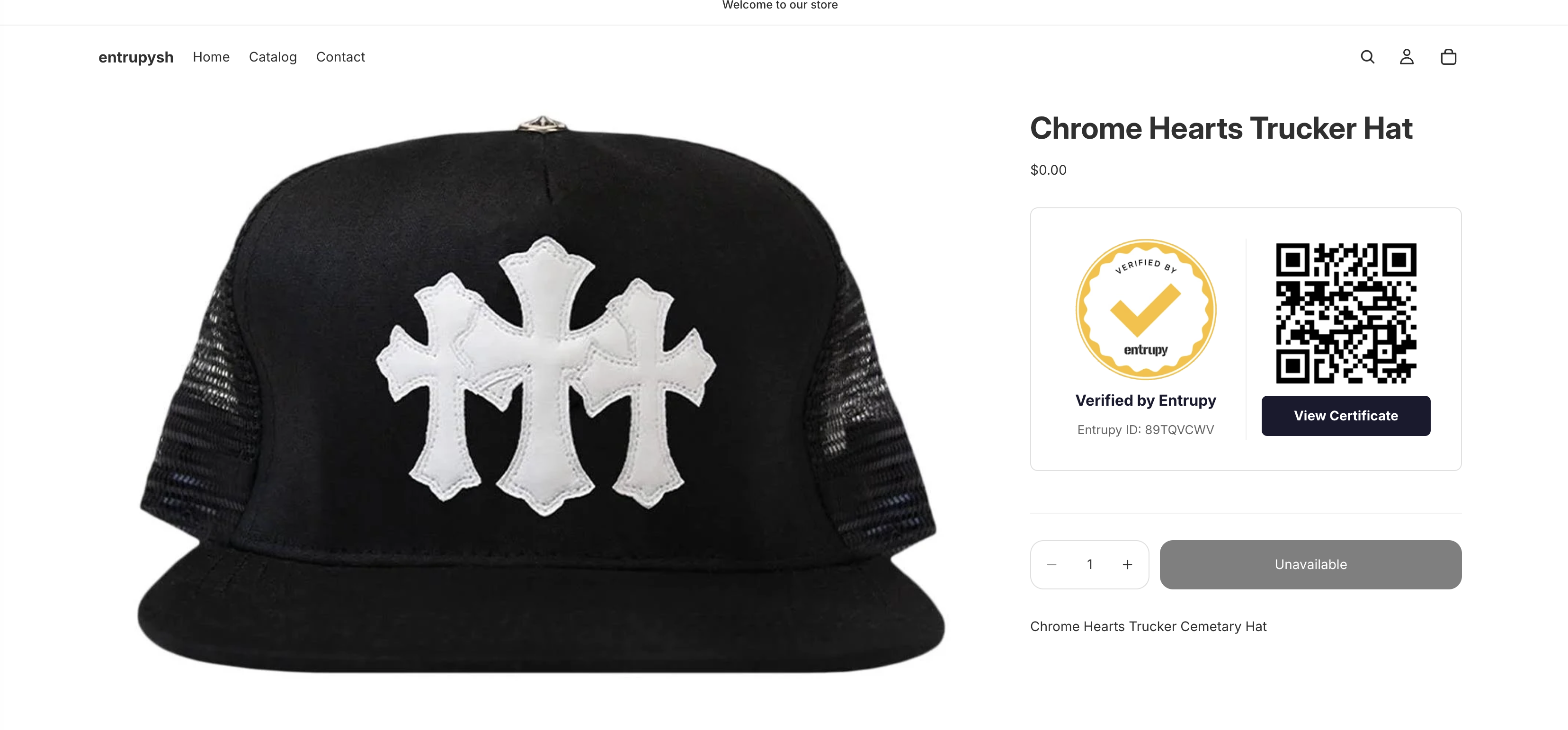
How to add the badge to your theme
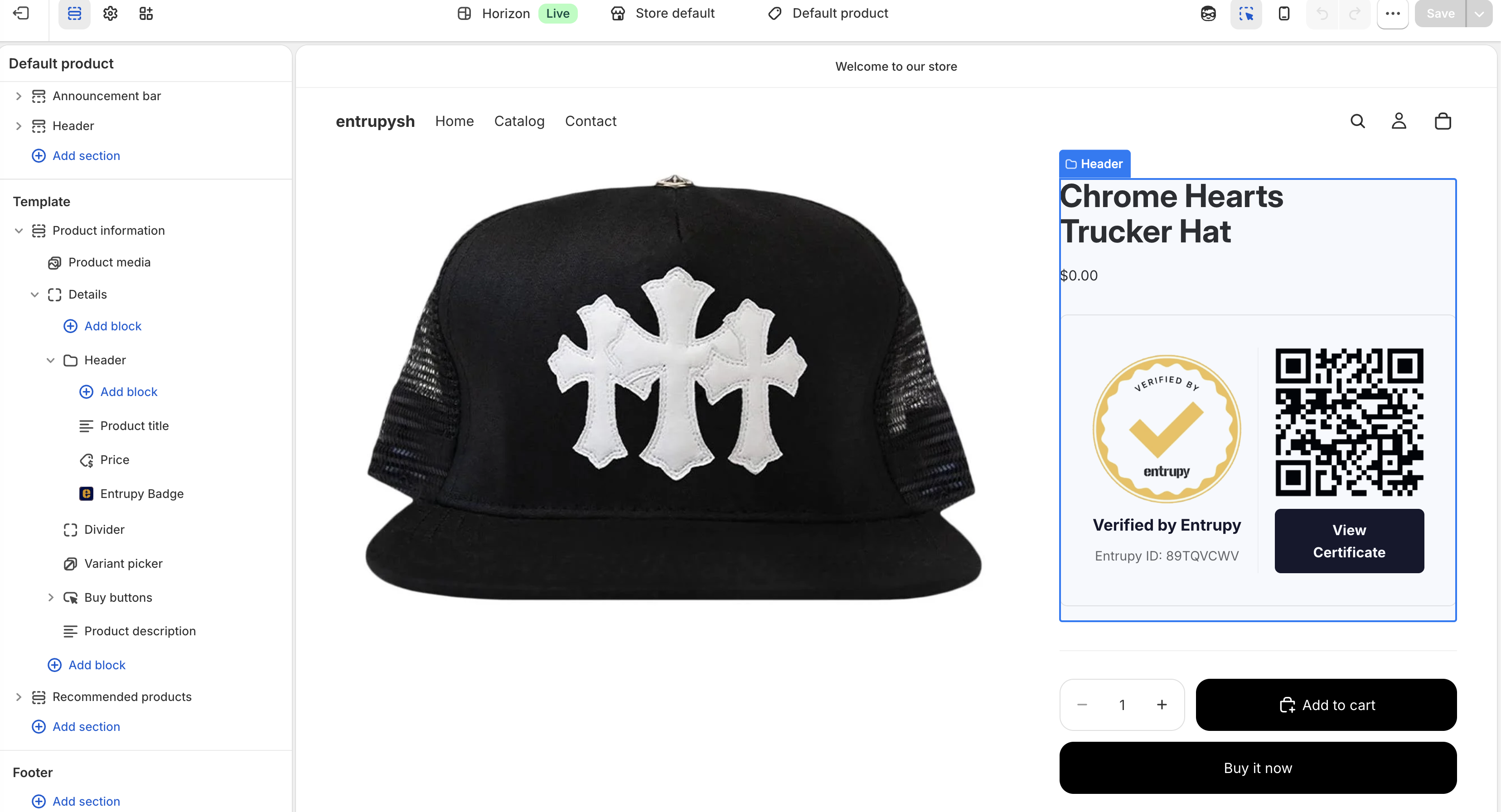
You only need to add the Entrupy Badge block to your theme once. After that, it appears only on products with an Authentic Entrupy result and stays hidden on everything else.
- In Shopify admin, go to Online Store → Themes
- Click Customize on your active theme
- Use the top dropdown to navigate to the Product page template
- Click Add block inside the product section
- Find Entrupy Badge in the app blocks list
- Drag it where you want it (below the price or above Add to cart are both good spots)
- Click Save
Multiple Stores
Settings are saved per Shopify store. Install the app on each store that should use Entrupy, then add the Entrupy API key for that store.
FAQ
How do results get to my Shopify store?
When Entrupy finishes reviewing, or sends an update while review is still in progress, the result is sent to your store and the product updates automatically. You'll see the new status in the Entrupy block, and customers will see the badge when the product qualifies.
Can I re-authenticate a product?
If a product already has a final status (Authentic or Unidentified), the result won't change, even if you submit it again. Non-final statuses — including Needs Review, Action Needed, Submitted, and Invalid, can still be updated when Entrupy sends a new result.
What should I do when the block says Action Needed?
Open the Entrupy mobile app, find that authentication, and follow the instructions to retake or add photos. After you submit in the app, the Shopify block updates on its own. You don't need to scan the product QR code again unless you're starting a completely new authentication.
Can I link an authentication that was already done?
Yes. Open the product in Shopify admin, find the Entrupy block, and paste the Entrupy ID or Certificate URL into the Existing authentication field. Click Link to product. If the authentication can be linked, the result appears in the block.
Can I remove an authentication from a product?
Yes. In the Entrupy block, click Remove authentication and confirm. This clears Entrupy data from that Shopify product but does not delete the product or its images. You can link the same Entrupy authentication again on the same or a different product.
What happens when I update my Entrupy API key?
Saving a new key reconnects your store to Entrupy. You don't need to reinstall the app.
Will the certificate image or session photos replace my existing product images?
No. Certificate and session photos are added to your gallery. Your existing images stay as they are.
The session photos toggle is on, but no photos appeared. Why?
A few things can cause this:
- You chose When product is authentic, but the item isn't Authentic yet
- The product may already have the same session photos attached
- There may have been a temporary issue fetching the images from Entrupy
The authentication result is always saved to the product correctly. Any issue with session photos won't change that.
Will the badge show on every product?
No. The badge only appears on products marked Authentic. Draft items, invalid results, and products that haven't been authenticated yet show nothing to customers.
Which browser should I use?
Chrome is recommended. Safari may block embedded Shopify app screens in some settings.
Privacy
For details on what data the app stores, how it is used, and how it is deleted, see the Entrupy Authentication for Shopify — Privacy Policy.